All help topics
Settings and account
Custom fields
Add your own fields to customers, products, orders, product lines and quotes.
Every business records slightly different things. Custom fields let you add your own, such as an account number on customers, a supplier on products, an event date on orders, thread colours on product lines or a purchase order number on quotes.
Open Settings > Custom fields. Owners and Admins can add and change fields; everyone fills them in.
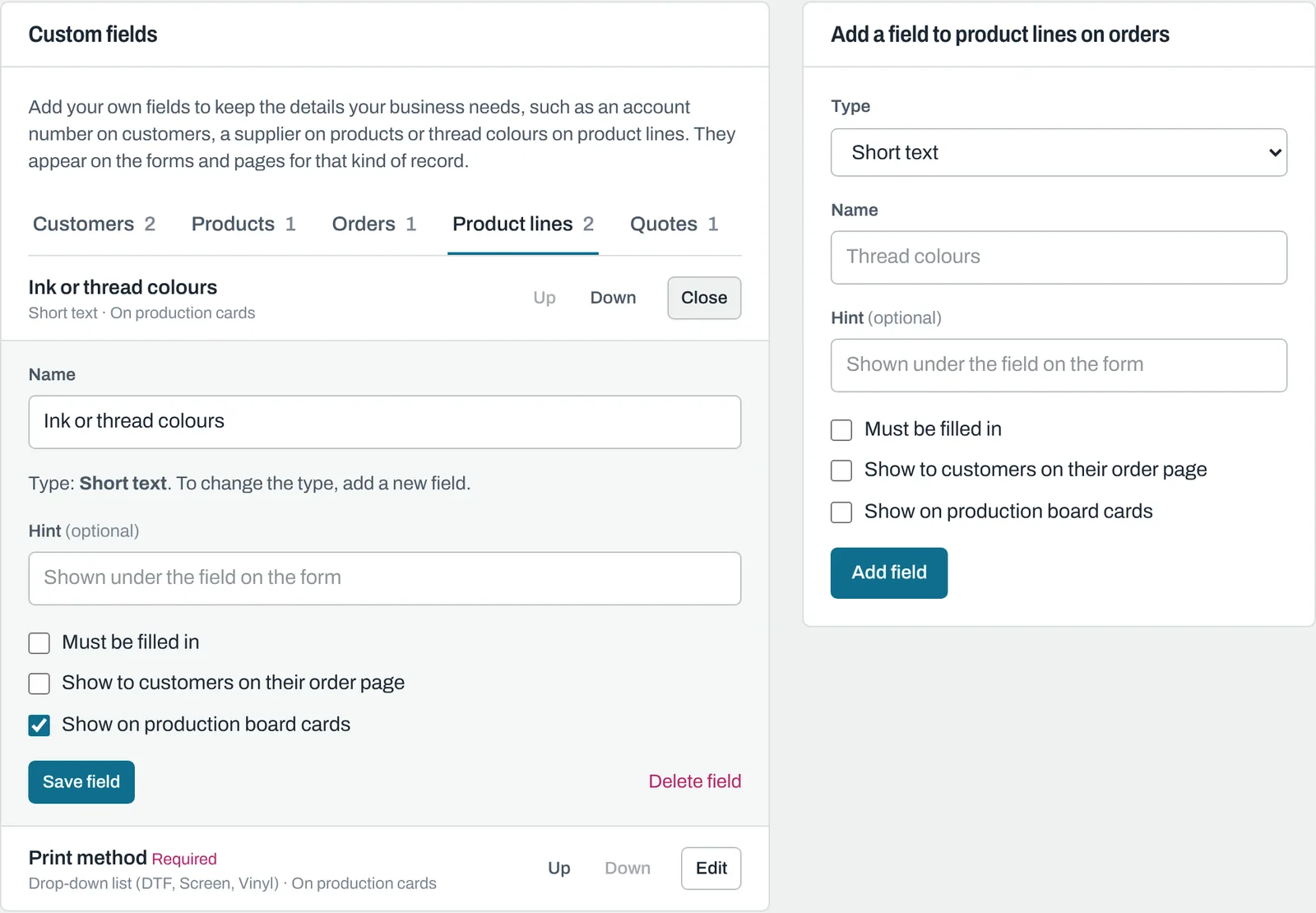
Adding a field
- Choose the kind of record along the top: Customers, Products, Orders, Product lines or Quotes.
- Under Add a field, choose the Type:
| Type | Good for |
|---|---|
| Short text | Account numbers, references, colours |
| Long text | Notes over several lines |
| Number | Quantities, measurements |
| Date | Event dates, deadlines |
| Drop-down list | A fixed set of choices, entered one per line under Choices |
| Tick box | Yes or no, such as "VIP" or "Proof printed" |
- Give it a Name, and a Hint if it helps people fill it in.
- Choose the options you want: - Must be filled in: the record can't be saved without it. - Show to customers on their order page (orders and product lines) or on their quote (quotes). - Show on production board cards (orders and product lines).
- Click Add field.
The field appears straight away on the forms for that kind of record, and its value shows on the record's page whenever it's filled in.
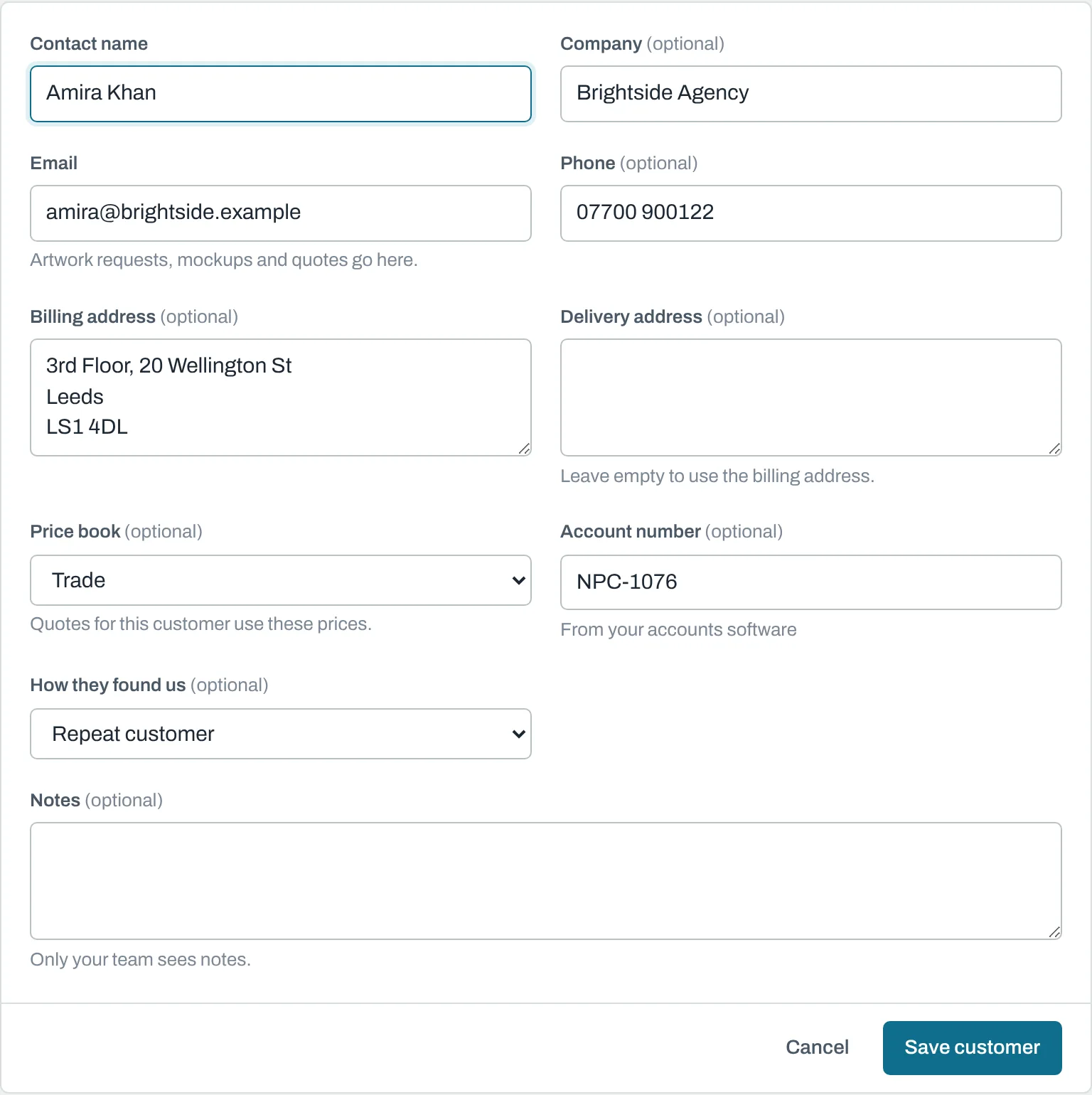
Where the values appear
| Record | Filled in on | Shown on |
|---|---|---|
| Customers | Add or edit customer | The customer's Details |
| Products | Add or edit product | The product list, under the name |
| Orders | New order and Edit | Details on the order page; and on the customer's page and production cards if you chose that |
| Product lines | Each line on New order, Add a product to this order and Edit details | Under the line's description; and on the customer's page and production cards if you chose that |
| Quotes | New and edit quote | Details on the quote; and on the customer's quote if you chose that |
The search bar also finds customers, orders and quotes by what's in their custom fields (for orders, the order's own fields, not its product lines' fields).
Changing, reordering and deleting
- Click Edit on a field to change its name, hint, choices or options, then Save field. You can't change a field's type; add a new field instead.
- Use Up and Down to change the order fields appear in on forms.
- Delete field removes it from forms and pages. Values already entered are no longer shown.
You can add up to 30 fields to each kind of record.
Still need help? Email [email protected] with your business's address and what you were trying to do.