All help topics
Orders
Adding an order
Add an order from your website or anywhere else, with its products, sizes and decoration.
ArtworkDesk doesn't connect to your online shop, so you add each custom order yourself. It takes about a minute, and you can note the website order number so the two are easy to match.
Click New order at the top of any page (or on a customer's page). Owners, Admins and Sales and design can add orders.
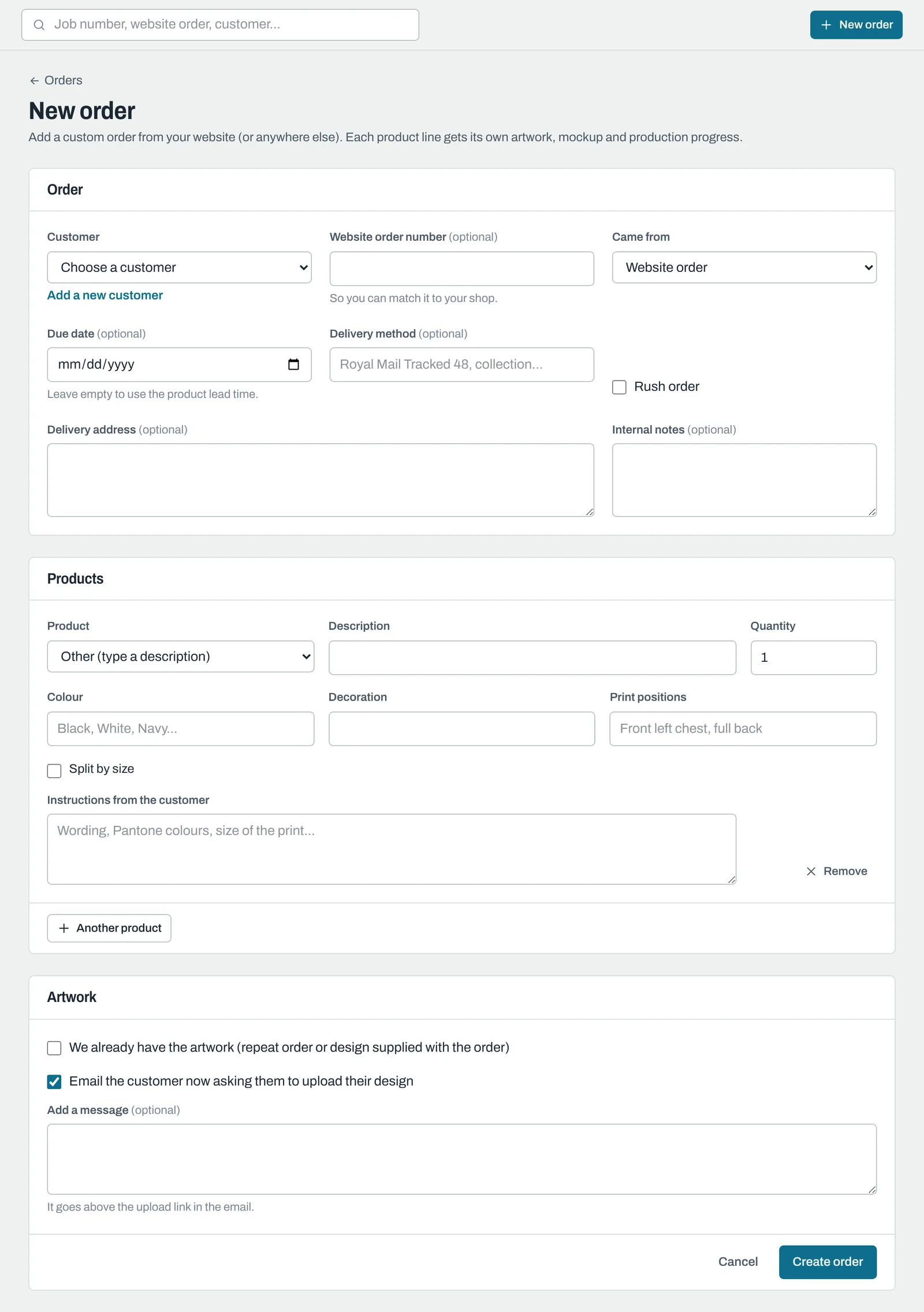
The order
| Field | What to enter |
|---|---|
| Customer | Pick from the list, or click Add a new customer. You come straight back to the order with them selected. |
| Website order number | Optional. The number from your shop, so you can match the two. |
| Came from | Website order, Approved quote, Email, Phone, In person or Other. |
| Due date | Optional. Leave it empty and ArtworkDesk works it out from the products' lead times (see below). |
| Delivery method | Optional, for example "Royal Mail Tracked 48" or "Collection". |
| Rush order | Tick to put the order first on the production board and mark it Rush. |
| Delivery address | If it's empty, it's filled in from the customer's delivery address (or billing address) when you pick them. You can change it. |
| Internal notes | Only your team sees these. They appear in a yellow banner on the order. |
The products
Add one line for each product. Each line gets its own artwork, mockup and production progress, so the mugs can be printing while the hoodies are still being approved.
- Product: one of your products, or Other (type a description).
- Description: what the customer ordered. It's filled in with the product name.
- Quantity.
- Colour, Decoration and Print positions: for example Navy, Screen print, Front left chest.
- Split by size: tick to enter quantities for XS to 5XL. The quantity then becomes the total of the sizes.
- Instructions from the customer: wording, Pantone colours, print size and so on. Only your team sees these.
Click Another product to add more lines (up to 100), or Remove to take one out.
Artwork
- If you already have the design (a repeat order, or the customer sent it with the order), tick We already have the artwork. Every line then starts at Mockup to do.
- Otherwise, leave Email the customer now asking them to upload their design ticked. The customer gets an email with a link to upload their files, and you can Add a message to go above the link. You can also send this later from the order page.
Click Create order. The order gets the next job number, such as JOB-1001.
How the due date is worked out
If you leave Due date empty, it's today plus the longest lead time of the products on the order, counted in working days (Monday to Friday). If none of the products has a lead time, your Default lead time from Settings is used. Leaving every lead time at 0 means no due date.
After creating the order
You'll be on the order page. From here you can add more products, record artwork, send mockups and, later, record the dispatch.
Still need help? Email [email protected] with your business's address and what you were trying to do.