All help topics
Production and dispatch
The production board
Move approved jobs through your workshop's stages, assign them, and change the stages.
Click Production in the sidebar. Every approved product line appears here, from the moment it's approved until it's dispatched.
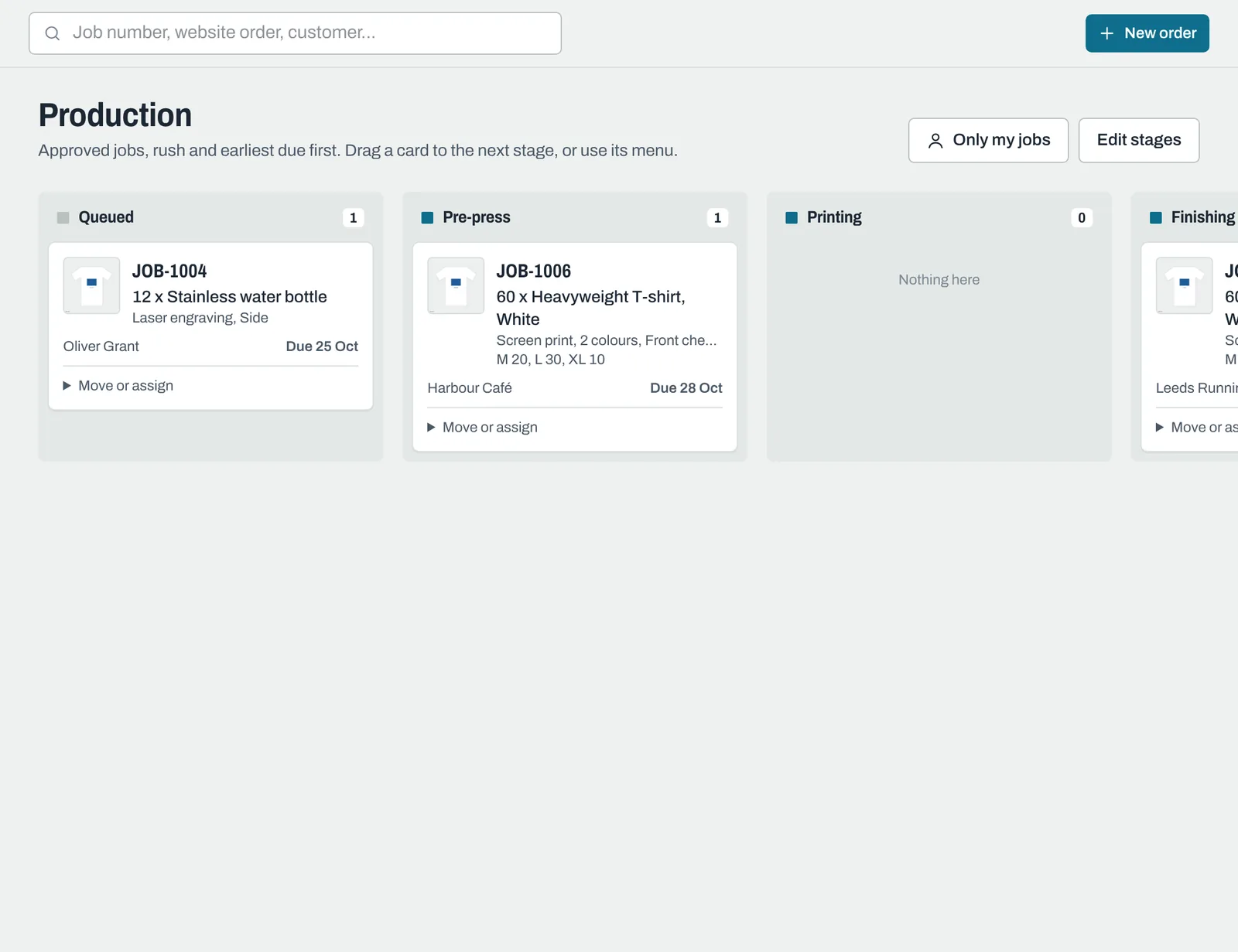
The columns
- Queued: approved and waiting to start.
- Your own production stages, for example Pre-press, Printing, Finishing and Quality check.
- Ready to dispatch: finished and ready to go.
Within each column, rush jobs come first, then the earliest due date.
Each card shows the approved mockup, the job number, the product with its decoration, positions and sizes, the customer and the due date (in magenta when overdue).
Moving a job
Drag a card to another column. You can move cards forwards or backwards.
Or click Move or assign on the card, choose the stage and click Move. This is easier on a tablet or phone.
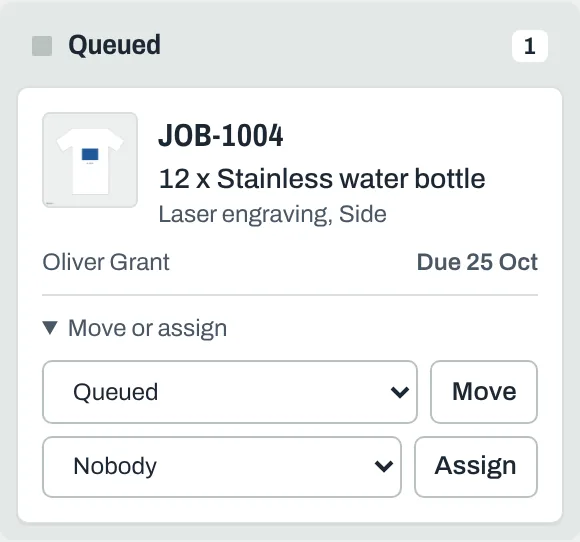
The customer's page shows "In production" while the job is on the board, and "Packing" once it's in Ready to dispatch. Moving cards never emails the customer.
Assigning a job
Open Move or assign on the card, choose a team member and click Assign. The card then shows "With (name)". Anyone can click Only my jobs to see just the jobs assigned to them.
Dispatching from the board
Cards in Ready to dispatch have a Dispatch button in their menu, which opens the order's dispatch form. See Dispatching orders.
Changing the stages
Owners and Admins can click Edit stages on the board, or open Settings > Production stages.
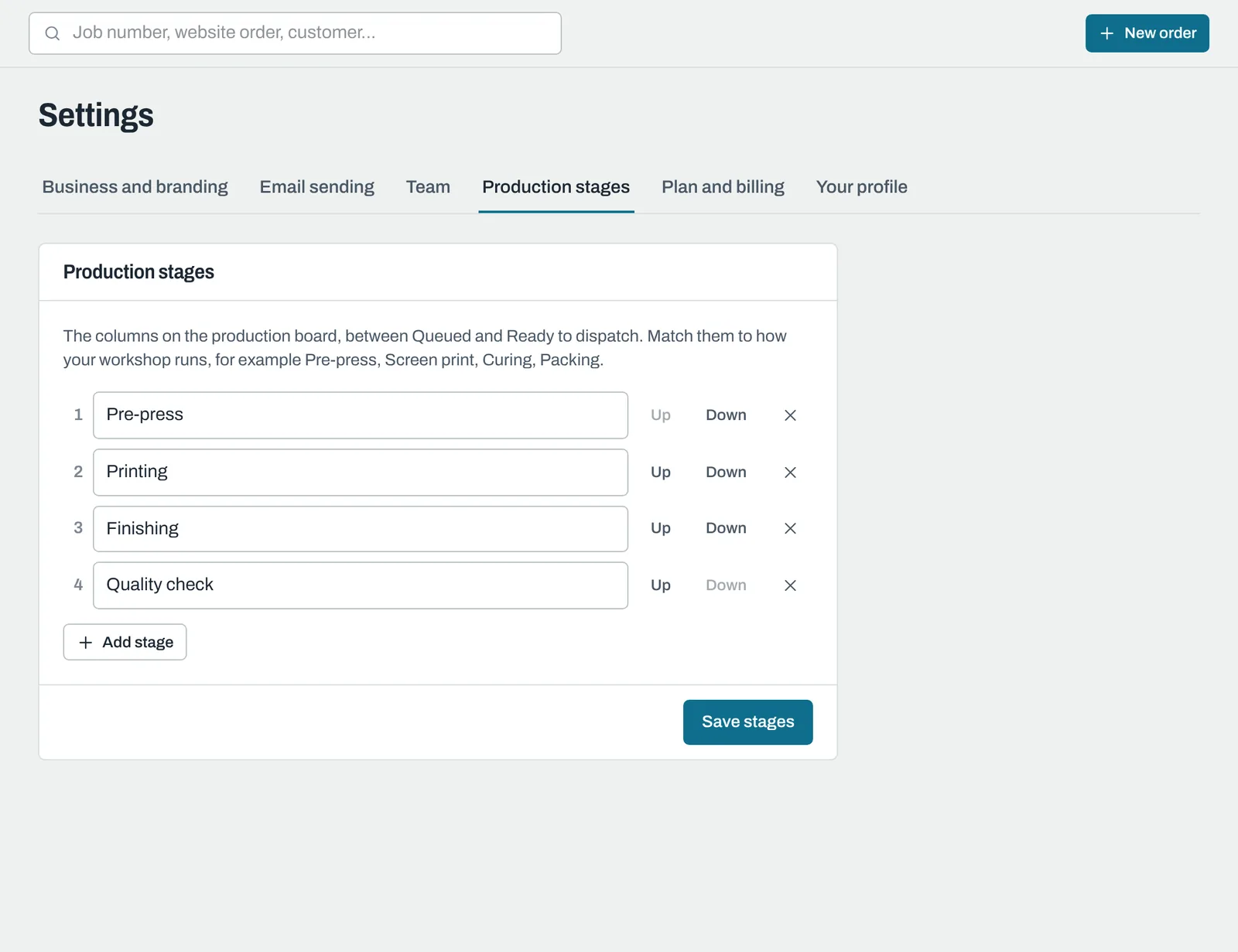
- Rename a stage by typing over it.
- Use Up and Down to change the order, and x to remove a stage.
- Click Add stage to add one (up to 15).
- Click Save stages.
If you remove a stage that has jobs in it, those jobs go back to Queued.
Still need help? Email [email protected] with your business's address and what you were trying to do.