All help topics
Quotes and prices
Creating and sending quotes
Build a quote from your price book, add charges and discounts, and email it to the customer.
Click Quotes in the sidebar, then New quote. Owners, Admins and Sales and design can create quotes.
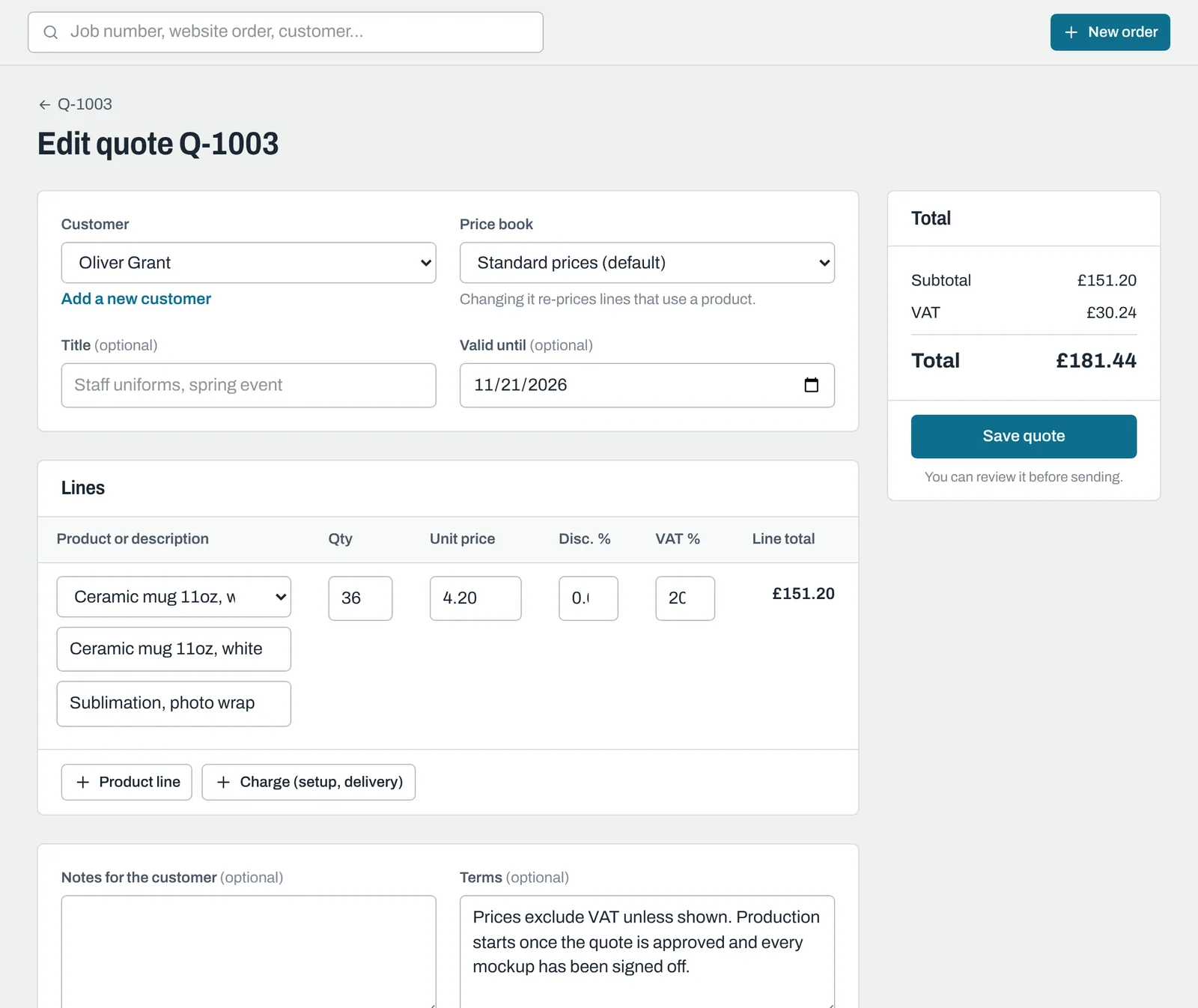
The details
- Customer: pick or add one. Picking a customer switches to their price book, or to your default book if they don't have one.
- Price book: the prices to use. Changing it re-prices every product line, including prices you typed yourself.
- Title: optional, for example "Staff uniforms, spring event".
- Valid until: set from your Quotes valid for (days) setting, 30 days to start with.
Adding lines
Product line adds a product (with a quantity of 25 to start). Choose the product and enter the quantity, and the unit price fills in from the price book. If the price break has a setup fee, a "Setup:" line is added underneath.
- Description the customer sees: what appears on the quote.
- Add the decoration, for example "Screen print, 2 colours front".
- Disc. % gives a percentage discount on that line.
- VAT % starts at your default VAT rate.
Charge (setup, delivery) adds a line for something that isn't made, such as delivery or artwork time.
Type your own unit price to override the price book for that line; it then stays as you typed it.
If a product has no price in the book, you'll see "No price for this product in this price book. Enter one."
Add Notes for the customer and check the Terms (filled in from your Standard quote terms). Internal notes are for your team only, and carry over to the order.
Click Save as draft. Nothing is sent yet.
Sending the quote
On the quote, under Send to the customer, add a Personal message if you like and click Email quote.
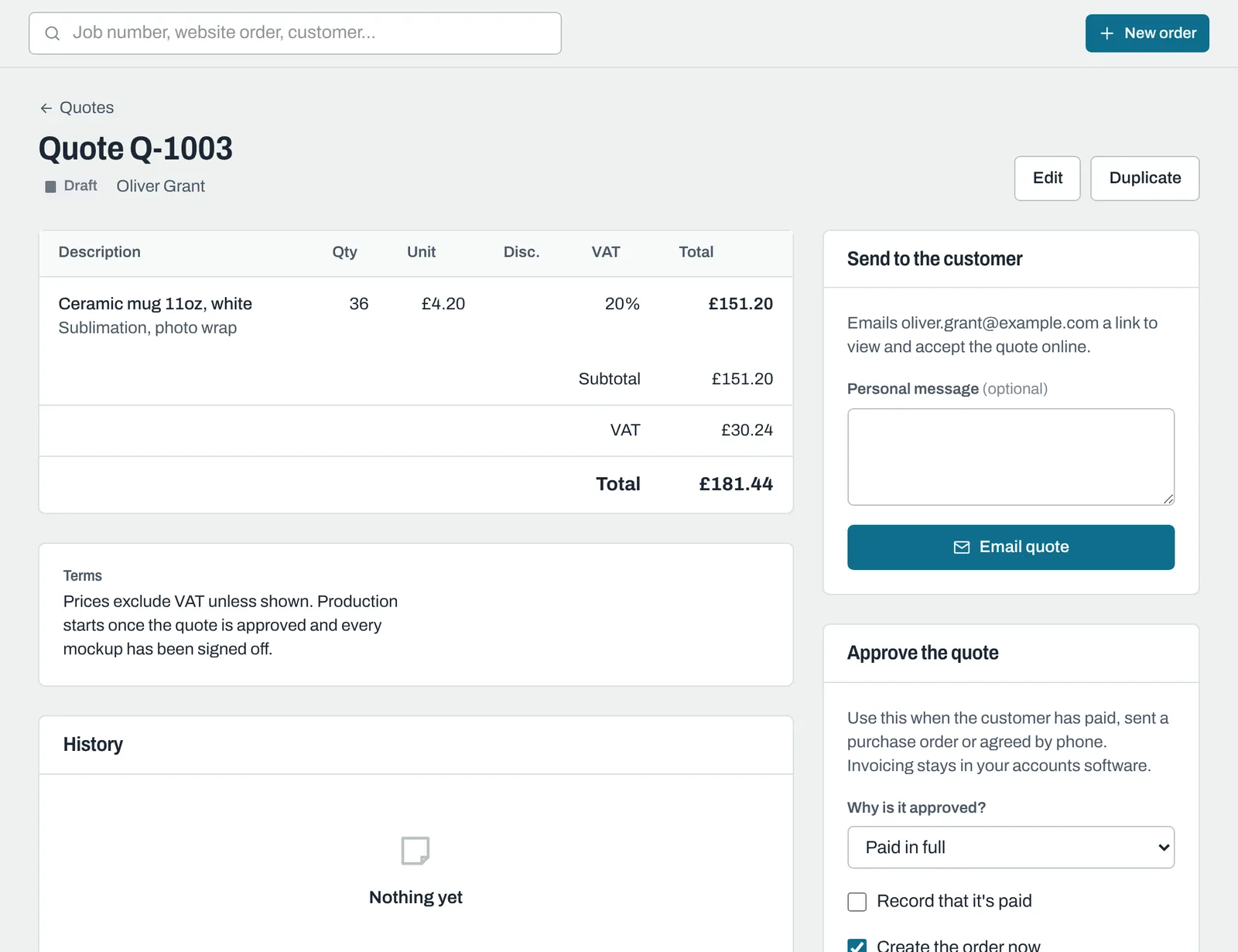
The customer gets an email called "Your quote Q-1001 from (your business)", with the total and a View and accept the quote button. The quote becomes Sent.
Changed a quote after sending it? Save it, then use Send it again > Email quote again so the customer has the latest version. They always see the current version through their link.
To send the link yourself, use Copy customer link under Details. See what the customer sees opens their page.
Quote statuses
| Status | Meaning |
|---|---|
| Draft | Not sent yet. The customer can't see it. |
| Sent | Emailed and waiting for an answer. |
| Accepted by customer | The customer clicked Accept quote. Approve it when you're ready to go ahead. |
| Declined | The customer clicked No thanks, or you marked it declined. |
| Expired | The Valid until date passed without an answer. |
| Approved | You've confirmed it, for example because it's paid. A green Paid marker shows if you recorded payment. |
You can edit a quote while it's Draft, Sent, Declined or Expired. Accepted and approved quotes can't be edited; click Duplicate to make a new version.
Still need help? Email [email protected] with your business's address and what you were trying to do.