All help topics
Orders
The order page
Everything about one order: its product lines, changing details, cancelling, notes and the timeline.
Open an order from Orders, the dashboard or search. The order page has everything about the job in one place.
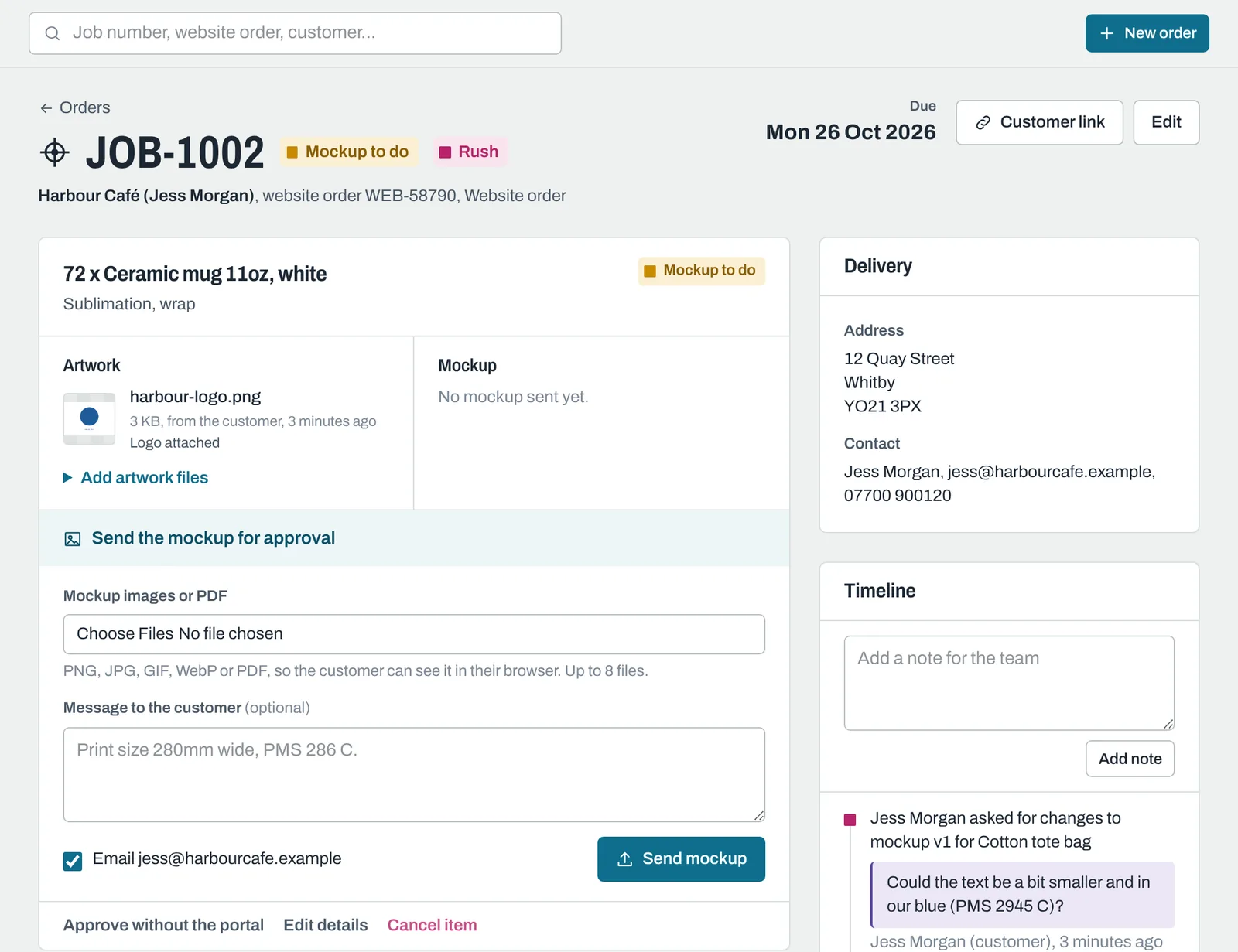
The top of the page
- The job number, the order's status and a Rush marker if it's a rush order.
- The customer, the website order number and where the order came from.
- The Due date (in magenta when it's overdue).
- Customer link copies the link to the customer's own page for this order, so you can send it yourself in an email or message.
- Edit changes the order's details (see below).
Any Internal notes show in a yellow banner.
Product lines
Each product has its own card with:
- the quantity, description, colour, decoration, print positions and sizes;
- its status;
- the customer's Instructions (your team only);
- an Artwork panel and a Mockup panel.
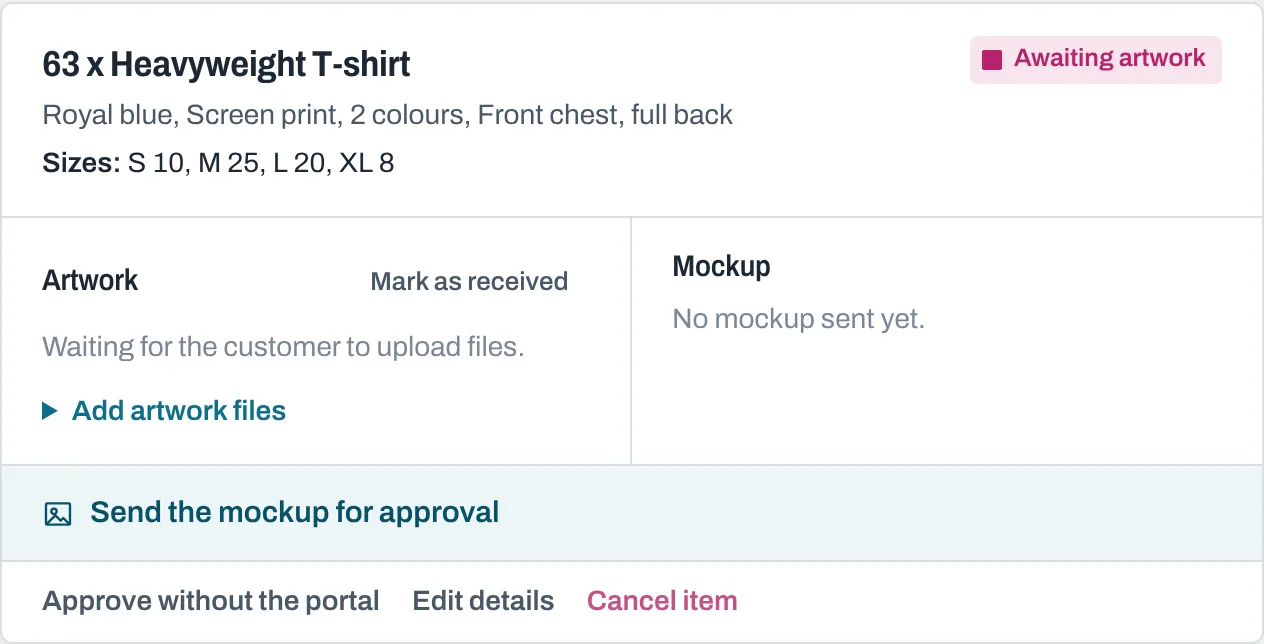
At the bottom of each card:
- Approve without the portal: see Changes, reminders and approving for the customer.
- Edit details: change the description, quantity, colour, sizes and so on, while the line is still in design.
- Cancel item: see below.
- Open production board: once the line is in production.
Adding a product
Use Add a product to this order under the product cards. Fill in the line as on a new order, tick Artwork already on file if you have the design, and click Add product. You can add a product at any stage; no email is sent.
Changing the order's details
Click Edit to change the website order number, where it came from, due date, delivery method, delivery address, rush and internal notes. These can be changed at any stage.
Message shown to the customer appears at the top of the customer's page for this order, instead of your usual Message on customer pages.
You can't change the customer on an order. If it's wrong, delete the order and add it again.
Once a design is approved, it's locked
When a line is approved (by the customer, or by you on their behalf), it moves to Queued for production and is locked: its details, artwork and mockups can't be changed, so what's made is exactly what was signed off.
To change something after approval, click Cancel item on that line, then add a new line with the changes. The new line goes through approval again.
Cancelling a line
Click Cancel item, add a reason if you like, and click Cancel this item. You can cancel any line that hasn't been dispatched. A cancelled line is faded on your page and hidden from the customer, and the reason goes on the timeline. A cancelled line can't be restored; add it again if you need to.
Remove from order (under Edit details) is only offered for lines with no artwork and no mockups, for example a line added by mistake.
Deleting an order
Click Edit, then Delete order. The order disappears from ArtworkDesk and the customer's link to it stops working. This can't be undone in the app.
Timeline and team notes
The Timeline on the right lists everything that happened on the order, newest first: who added artwork, when mockups were sent and opened, approvals and comments, production moves, dispatches and more. Your customers' actions show their name with "(customer)".
To leave a note for your team, type it in Add a note for the team and click Add note. Notes stay on the timeline and are never shown to the customer.
Still need help? Email [email protected] with your business's address and what you were trying to do.