All help topics
Production and dispatch
Dispatching orders
Record a shipment, send the customer their tracking link, and send part of an order.
When work is ready, record the dispatch on the order page. Everyone on the team can do this, including Production.
Recording a dispatch
On the order page, find Record a dispatch on the right. It appears once any line is approved.
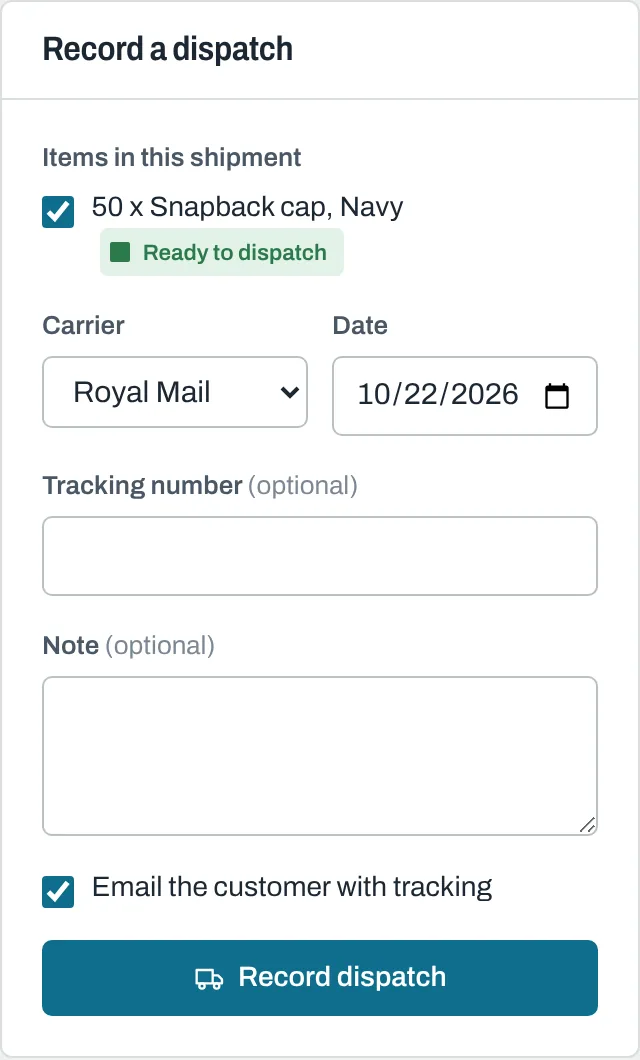
- Under Items in this shipment, tick the lines going out. Lines in Ready to dispatch are already ticked.
- Choose the Carrier: Royal Mail, Parcelforce, DPD, DHL, Evri, UPS, FedEx, Yodel, Collected, Own delivery or Other.
- Check the Date (today to start with).
- Enter the Tracking number. For the carriers listed, the tracking link is made for you. For Other, paste the Tracking link instead.
- Add a Note if you like. It's included in the email to the customer.
- Leave Email the customer with tracking ticked to send them the details.
- Click Record dispatch.
The lines become Dispatched. The customer gets an email called "Your order JOB-1001 is on its way" with the items and a Track your parcel button, and their order page shows the delivery details.
Collections and your own deliveries
Choose Collected or Own delivery. There's no tracking number for these, and the email simply confirms what has gone.
Sending part of an order
Tick only the lines that are going. The order stays open until every line has been dispatched, and you can record as many shipments as you need. Each one is listed under Shipments on the order, with whether the customer was emailed.
Still need help? Email [email protected] with your business's address and what you were trying to do.