All help topics
Quotes and prices
Accepting and approving quotes
How customers accept, how you approve a quote, and turning it into an order.
The customer's side
The link in the quote email opens a printable quote in your colours. While it's in date, the customer can:
- type their name, tick I accept this quote and its terms and click Accept quote; or
- click No thanks, optionally say why, and click Decline quote.
Either way, your team gets an alert email. They can also click Print or save as PDF.
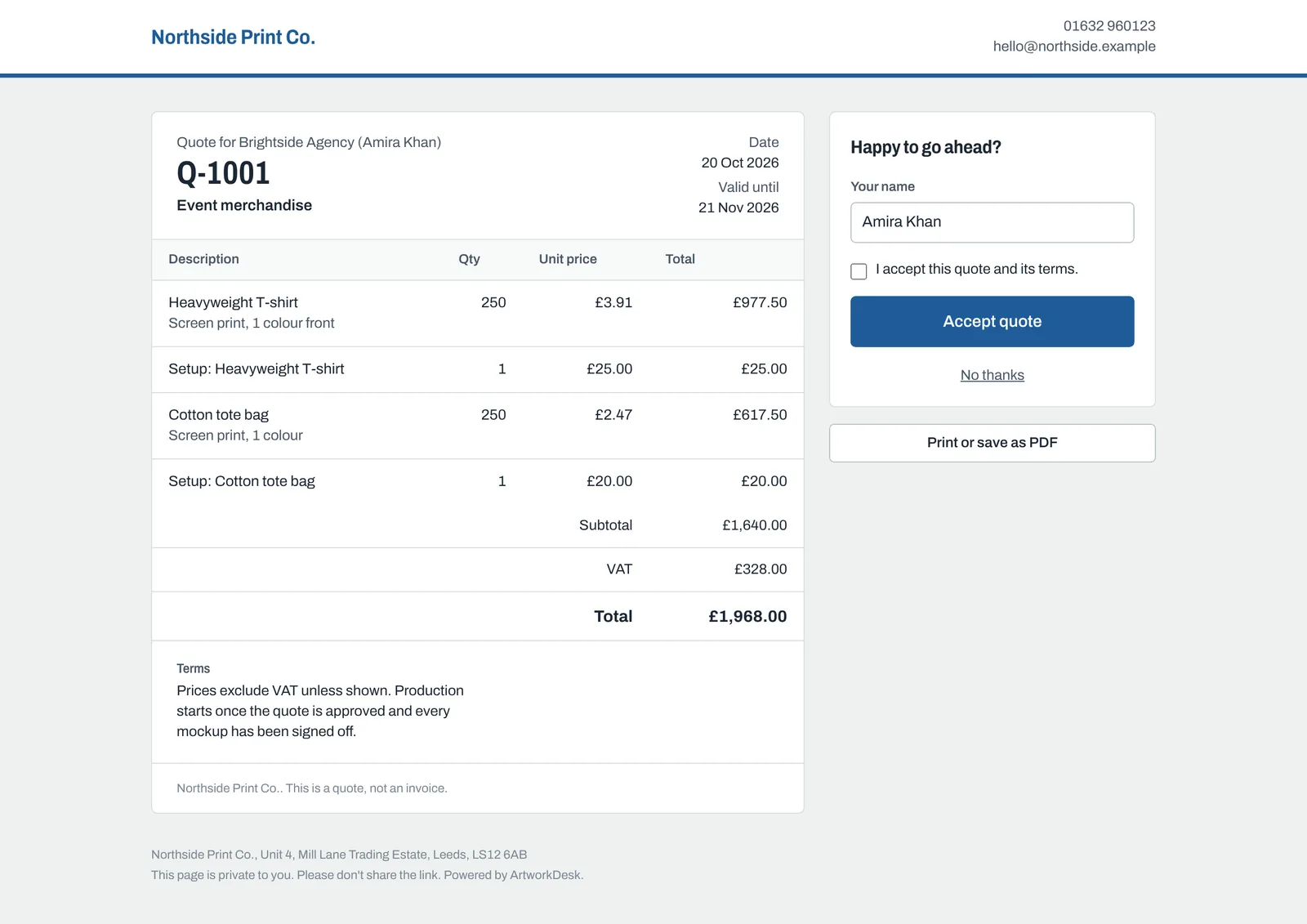
After the Valid until date, the customer can no longer accept it and is asked to contact you for an updated price. ArtworkDesk marks the quote Expired.
Approving a quote
Accepting isn't the end: you decide when to go ahead, for example once it's paid. Approving is how you record that. Quotes accepted by customers also appear on your dashboard under Quotes accepted, ready to approve.
On the quote, under Approve the quote:
- Choose Why is it approved?: Paid in full, Deposit paid, Purchase order received, Account customer (pays on invoice) or Accepted by customer.
- Tick Record that it's paid to add a Payment reference, such as your invoice number.
- Leave Create the order now ticked to make the order straight away.
- Click Approve quote.
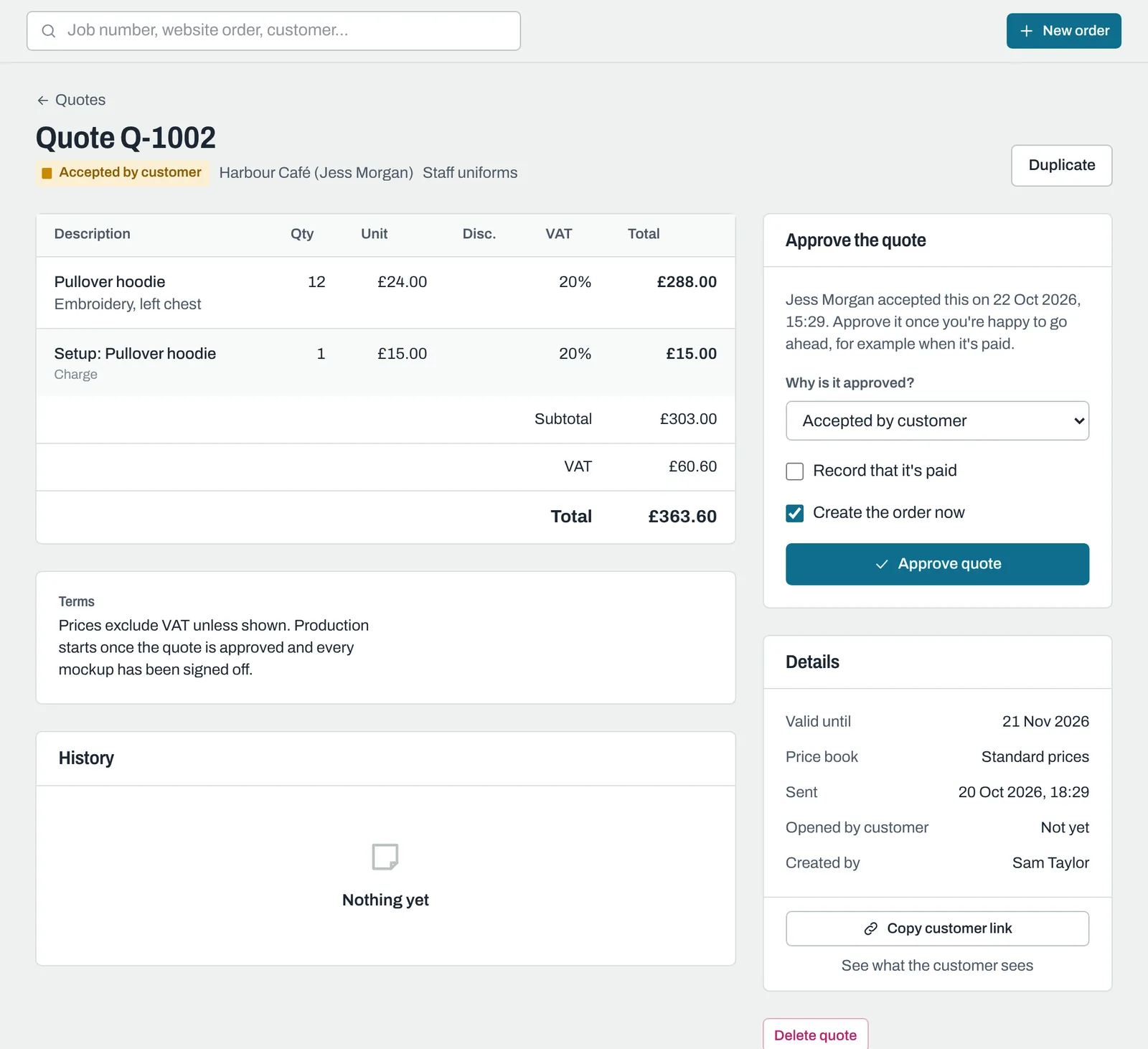
You can approve a quote at any stage, even if the customer hasn't accepted it online, for example when they've sent a purchase order by email.
Approving doesn't send anything to the customer. Invoicing stays in your accounts software.
The order made from a quote
With Create the order now, you're taken to the new order. Each product line on the quote becomes a product line on the order, with its quantity and decoration. Charge lines (such as setup and delivery) are left out, because they're not made.
Every line starts at Awaiting artwork, and no email is sent. Add the colours, sizes and print positions, then ask for the artwork when you're ready.
If you didn't create the order straight away, click Create the order on the approved quote later.
Other things you can do
- Mark as declined: on a Sent quote, if the customer says no by phone or email.
- Reopen as draft: on an approved quote with no order yet, to change it. The customer's link stops working until you send it again.
- Duplicate: copies any quote into a new draft with a new number, for a revised or repeat quote.
- Delete quote: only while no order has been made from it.
Still need help? Email [email protected] with your business's address and what you were trying to do.