All help topics
Artwork and mockups
Sending a mockup for approval
Send a mockup, what happens next, versions, and copying the approval link.
A mockup shows the customer exactly how their design will look on the product. Nothing goes into production until they approve it.
Sending a mockup
On the product line, open Send the mockup for approval. It's already open when the line is at Mockup to do or Changes requested.
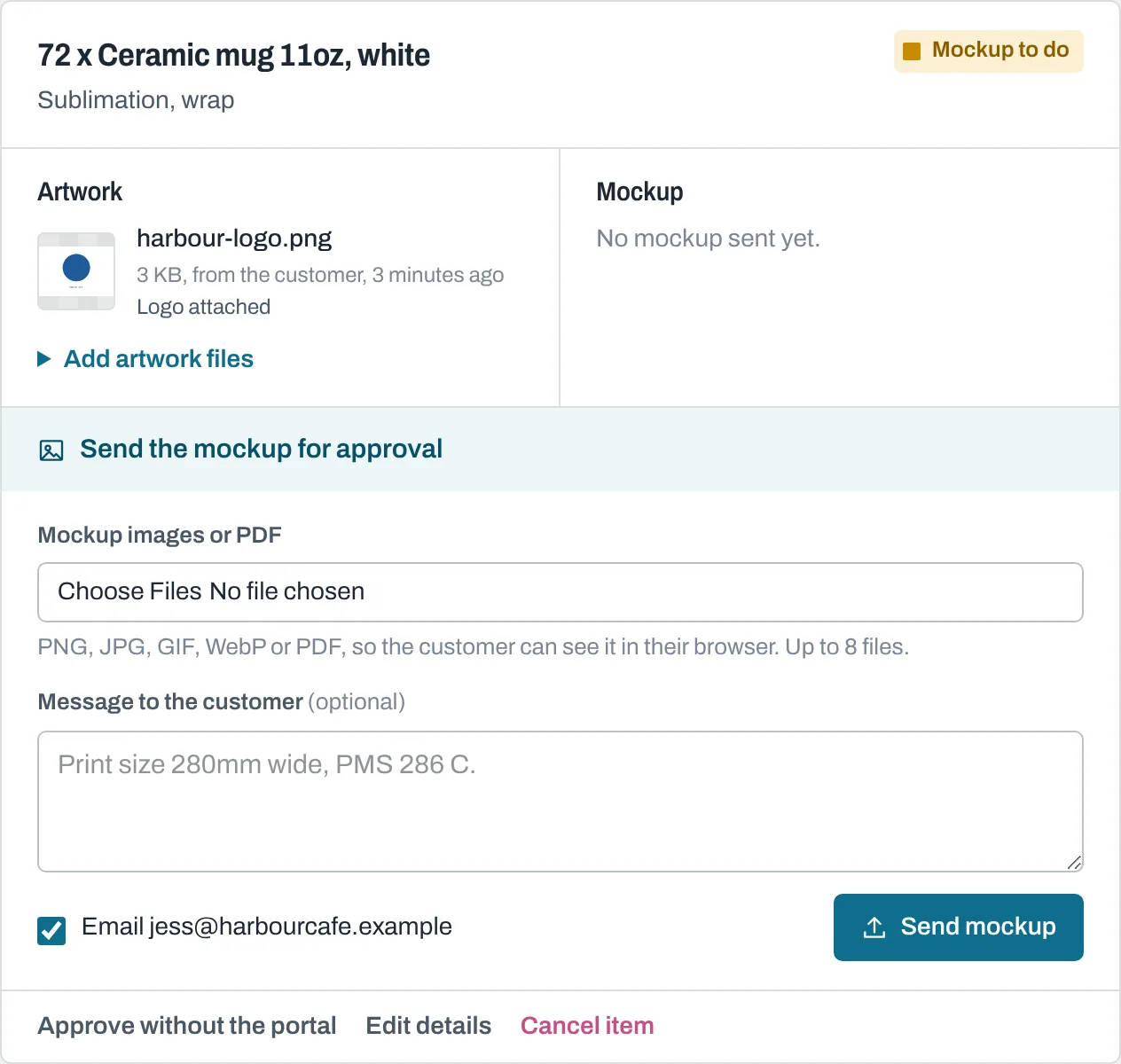
- Choose the Mockup images or PDF: PNG, JPG, GIF, WebP or PDF, up to 8 files, so the customer can see them in their browser. Several images work well for front and back views.
- Add a Message to the customer if you like, for example "Print size 280mm wide, PMS 286 C."
- Leave Email (customer's address) ticked to email them, and click Send mockup.
The line moves to Awaiting approval and the customer gets an email called "Your mockup is ready to approve, order JOB-1001", with a View the mockup button.
If you untick the email box, the mockup is saved without emailing. Use Copy approval link to send the link yourself, for example on WhatsApp.
After sending
The Mockup panel shows the version, when it was sent and by whom, and whether the customer has opened it yet.
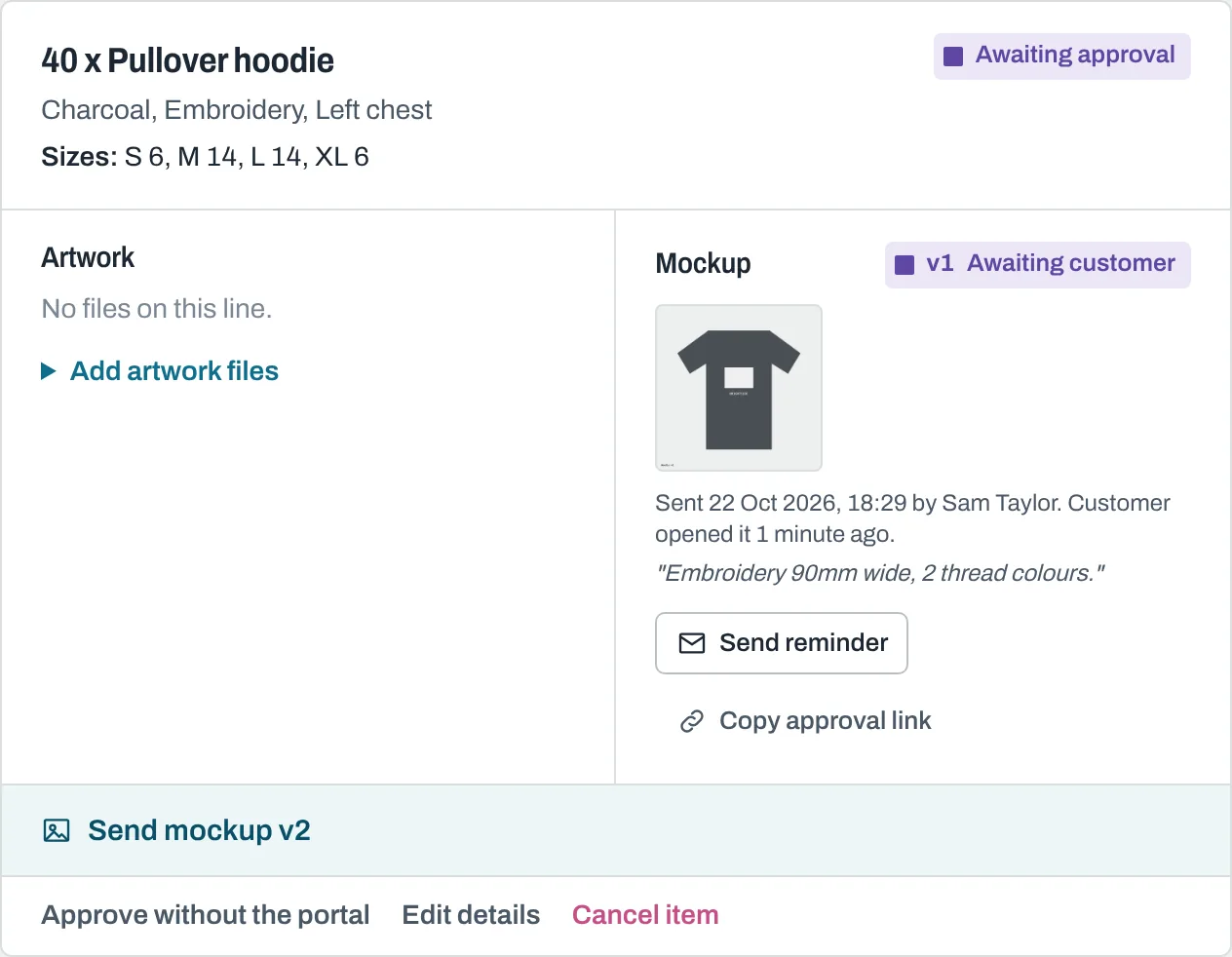
While you wait you can:
- Send reminder: emails the customer again;
- Copy approval link: copies the link to their mockup page.
When the customer answers, the panel shows Approved by (name) or Changes requested by (name), with the time and any comment, and your team gets an alert email.
Versions
Each mockup you send is a new version: v1, v2 and so on. Sending a new version replaces any version still waiting, so the customer can only approve the latest. Older versions, with their files and the customer's comments, are kept under Earlier versions.
What happens when it's approved
The line moves to Queued for production and appears on the production board. The design is now locked: see The order page.
The approval is recorded with the customer's typed name, the time and the version they approved, so there's never any doubt about what was agreed.
Next: What your customer sees.
Still need help? Email [email protected] with your business's address and what you were trying to do.