All help topics
Getting started
Your team and roles
Inviting people, the four roles and what each can do, and removing someone.
Open Settings > Team to see everyone on your account, invite people and change roles. Only the Owner and Admins can do this.
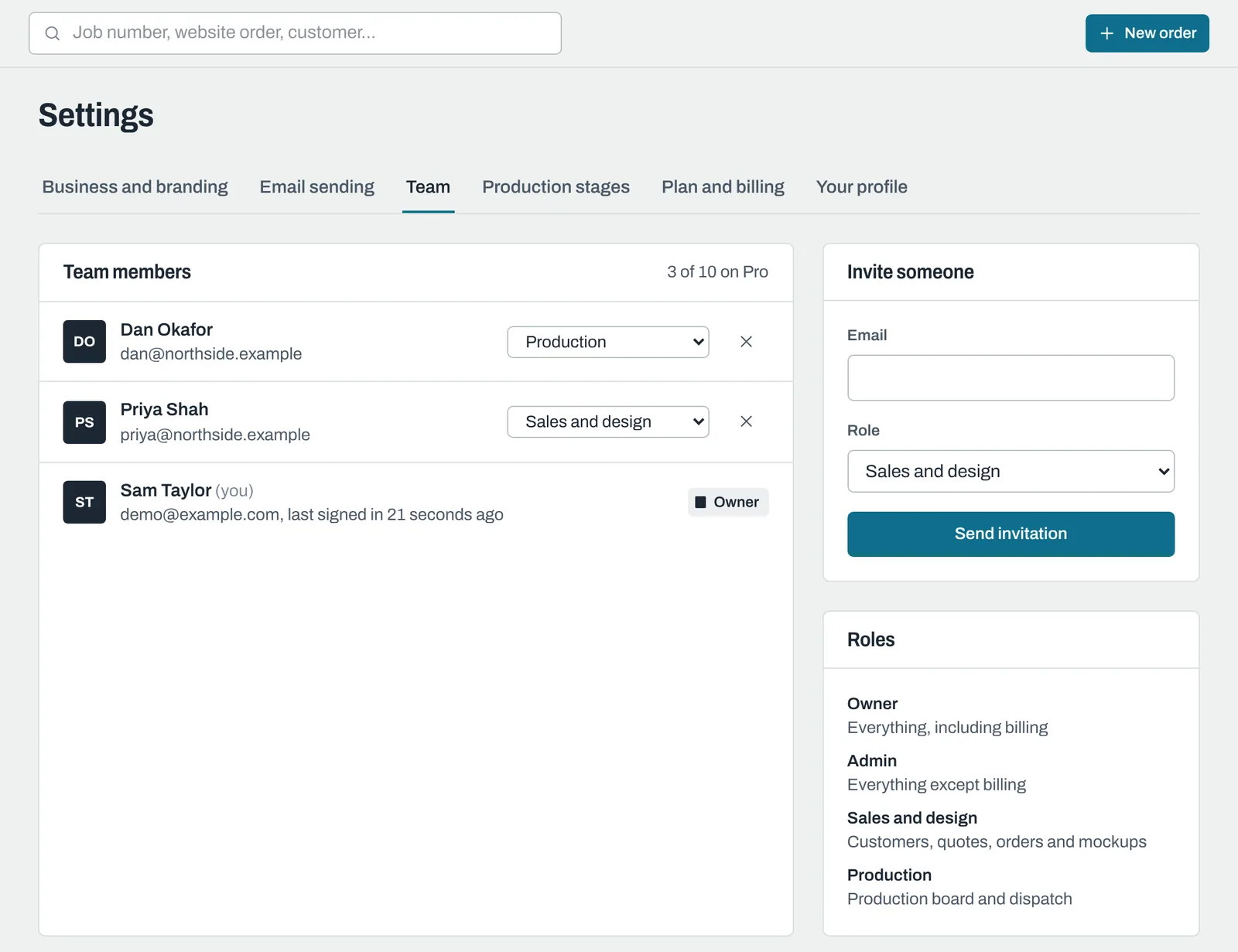
The four roles
| Role | In short | What they can do |
|---|---|---|
| Owner | Everything, including billing | Everything. The only person who can choose or change the plan. There's one Owner: the person who created the account. |
| Admin | Everything except billing | Everything except buying or changing the plan, including all settings and the team. |
| Sales and design | Customers, quotes, orders and mockups | Orders, artwork, mockups, Design approvals, quotes, customers, products and price books, production and dispatch. No settings, apart from their own profile. |
| Production | Production board and dispatch | The dashboard, orders (to view), the production board, recording dispatches (including the dispatch email) and adding notes. They can't open customers, quotes, products or prices, and can't send artwork requests or mockups. |
Inviting someone
- Under Invite someone, enter their Email and choose a Role.
- Click Send invitation.
They get an email with a link to join. Invitations last 7 days and appear in the list until they're used, with Copy link (to send it yourself) and Cancel.
Your plan sets how many people you can have, and pending invitations count towards it. When the plan is full, a note under the button says so and you can't send more invitations; see Plans, billing and cancelling.
Changing someone's role
Choose a new role from the drop-down next to their name. It's saved straight away.
Removing someone
Click the x next to their name and confirm. They can no longer sign in, and any production jobs assigned to them become unassigned. Timeline entries for their past work are kept, but no longer show their name.
Still need help? Email [email protected] with your business's address and what you were trying to do.