All help topics
Artwork and mockups
Getting artwork from customers
Ask customers for their design, add files they emailed you, and the file types that work.
Asking the customer for their design
While any line on an order is Awaiting artwork, the order page shows a panel at the top for asking the customer.
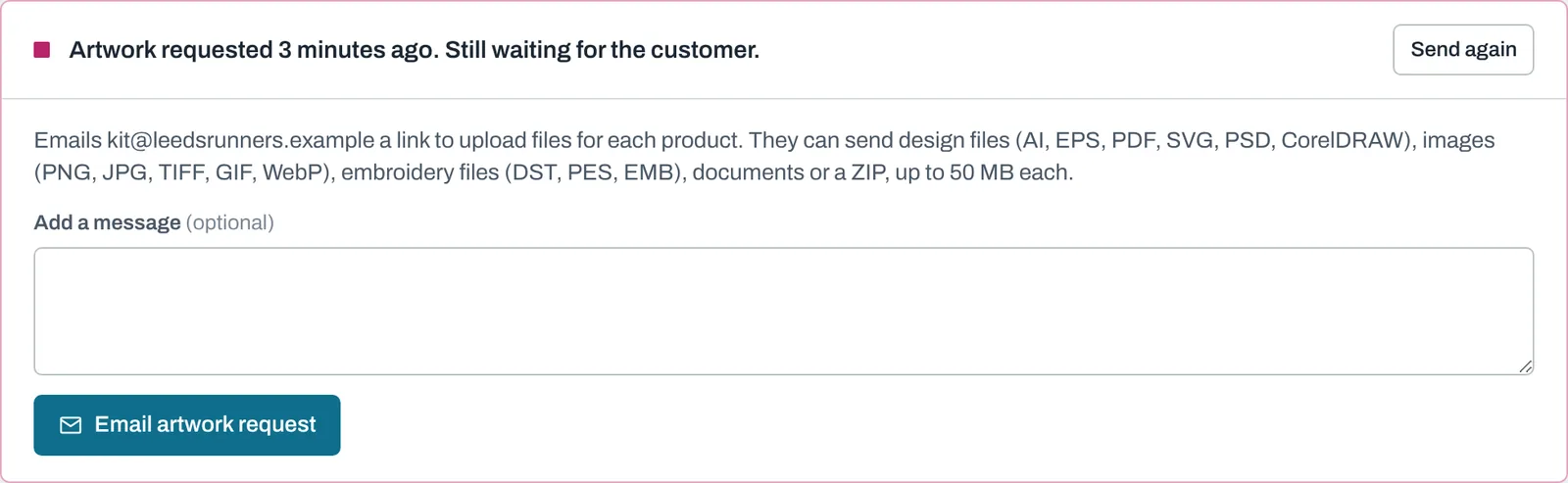
- Add a message if you like (it goes above the upload link).
- Click Email artwork request.
The customer gets an email called "Please send your design for order JOB-1001", listing the products that need artwork, with an Upload your design button. After sending, the panel shows when you asked, and Send again lets you chase them.
You can also send this request when you create the order, with Email the customer now asking them to upload their design.
What the customer does
The button takes them to their order page, where they choose the files, type their name and click Upload design. If more than one product needs artwork, they pick which product the files are for, or All of them. See What your customer sees.
When files arrive:
- the line (or lines) move from Awaiting artwork to Mockup to do;
- your team gets an alert email (see Your profile and alerts);
- the files appear in the line's Artwork panel, marked "from the customer". Files sent for All of them appear on every line, marked "for the whole order".
Adding files you received another way
If the customer emailed you their design, add it yourself: on the line, open Add artwork files, choose the files, add a note if useful and click Upload. The line moves to Mockup to do. Nothing is sent to the customer.
Marking artwork as received
If you already have the design (for example a repeat order, or a logo you hold on file), click Mark as received in the line's Artwork panel. The line moves to Mockup to do without any files.
File types and sizes
Up to 10 files at a time, up to 50 MB each:
| Kind | Types |
|---|---|
| Design files | AI, EPS, PDF, SVG, PSD, CDR (CorelDRAW) |
| Images | PNG, JPG, TIFF, GIF, WebP |
| Embroidery | DST, PES, EMB |
| Other | ZIP, TXT, DOC, DOCX |
PNG, JPG, GIF and WebP images show as thumbnails; click one to open it in the browser. Clicking a file's name downloads it.
Still need help? Email [email protected] with your business's address and what you were trying to do.